What is it?
A web-based portal to manage your held messages and to manage your Blocked and Permitted senders lists.
How do I access it?
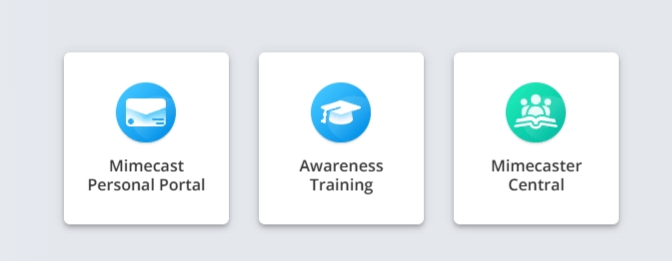
Go to https://mimecast.monmouth.edu/. Use your Monmouth email address and password to log in. Bookmark the page for quick access in the future. After logging in, you will see the Mimecast My Apps page. From there, select the Mimecast Personal Portal tile:
Managing Held Messages
- To manage Held Messages, go to: https://mimecast.monmouth.edu/. Log in using your Monmouth email address and Monmouth password. Bookmark the page for quick access in the future.
- The Personal Web Portal will display held messages:
- Personal On Hold: Select this from the left menu to view messages on hold.
- Select a message in the Personal On Hold list to see a preview of the message in the right pane. Decide if you want the message to be delivered to your inbox.
- Now choose Report Email, Thumbs Up, or Thumbs Down:
-
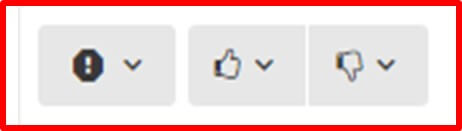
 Report (Exclamation Point): Select the downward facing arrow for two options: Report Spam or Report Phishing
 Release (Thumbs up) Select the downward facing arrow for three options:
- Release Message: message will be delivered to your inbox
- Release Message and Permit Sender: message will be delivered to your box and all future messages from that sender will be delivered to your inbox
- Release Message and Permit Domain: message will be delivered to your inbox and all future messages from that domain (e.g., nyt.com) will be delivered to your inbox
 Reject (Thumbs Down) Select the downward facing arrow for three options:
- Reject Message: message will not be delivered to your inbox
- Reject Message and Block Sender: message will not be delivered to your box and all future messages from that sender will be blocked
- Reject Message and Block Domain: message will not be delivered to your inbox and all future messages from that domain will not be delivered to your inbox
Managed Senders (Blocked and Permitted)
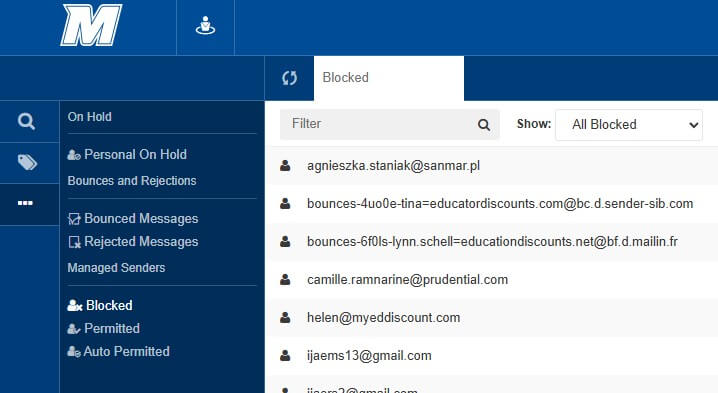
- To manage Blocked and Permitted senders, select the Blocked or Permitted menu item on the left. The email addresses listed are senders that you blocked or permitted in your Personal On Hold list or from a Daily Digest email. The example below shows the Blocked senders list.
- In your Blocked senders list, you can Permit or Remove a Blocked sender by selecting the Permit or Remove button next to the message. Note: if you Remove a sender, they are neither Permitted nor Blocked, so if you receive a message from them again, it may go back into your Personal On Hold list for you to review.
- In your Permitted list, you can Block or Remove a Permitted sender by selecting the Block or Remove button next to the message. Note: if you Remove a sender, they are neither Permitted nor Blocked, so if you receive a message from them again, it may go back into your Personal On Hold list for you to review.