Managing Timecards
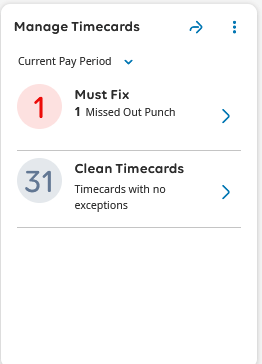
On the Manage Timecards tile, you will see:
- Must Fix: These are timecards that have an error on them that needs to be addressed before the pay period is closed.
- Miscellaneous: This is general information that does not need immediate attention
- Clean Timecards: These timecards have no errors but should be reviewed.
This “Manage Timecard” tile reflects action you as a supervisor need to take. “Exceptions of Must Fix” indicates you may have an employee who is missing punches.
Viewing Missed Punched in the Timecard
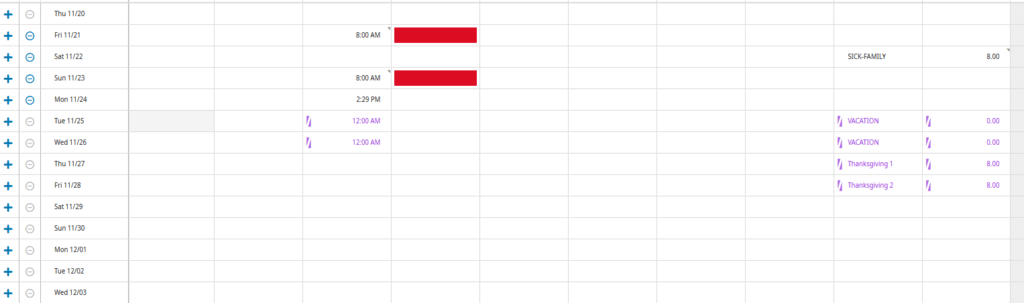
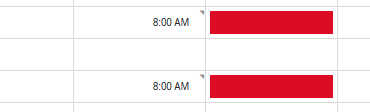
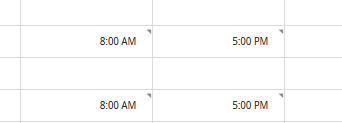
The missed entries will be designated in red. In this example, the person did not punch out. You can enter the time that they ended their shift in the red box by right-clicking in the box and adding the time the employee ended their shift. Then select save.
Before Fixing Exceptions
After Fixing Exceptions
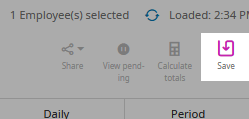
Finally, Hit the Save Button
Approving Requests
- Approving a request: select the “Approve” button.
- Refuse a request: select the “Refuse” button.
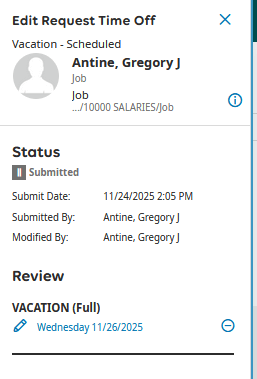
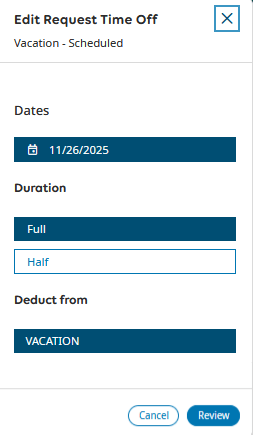
- Edit the request: select the “Edit” button, and then make the correction to date or amount of time.

Editing Requests
- Use the “Edit” button and a menu will open.
- Select the pencil icon to make the required edit.
- Once you see the change, hit “approve”
- Once approved, only HR can make changes.