
Close Close

How to Access Workforce Management

1. Open MyMU

2. Select UKG Pro from the Systems Menu
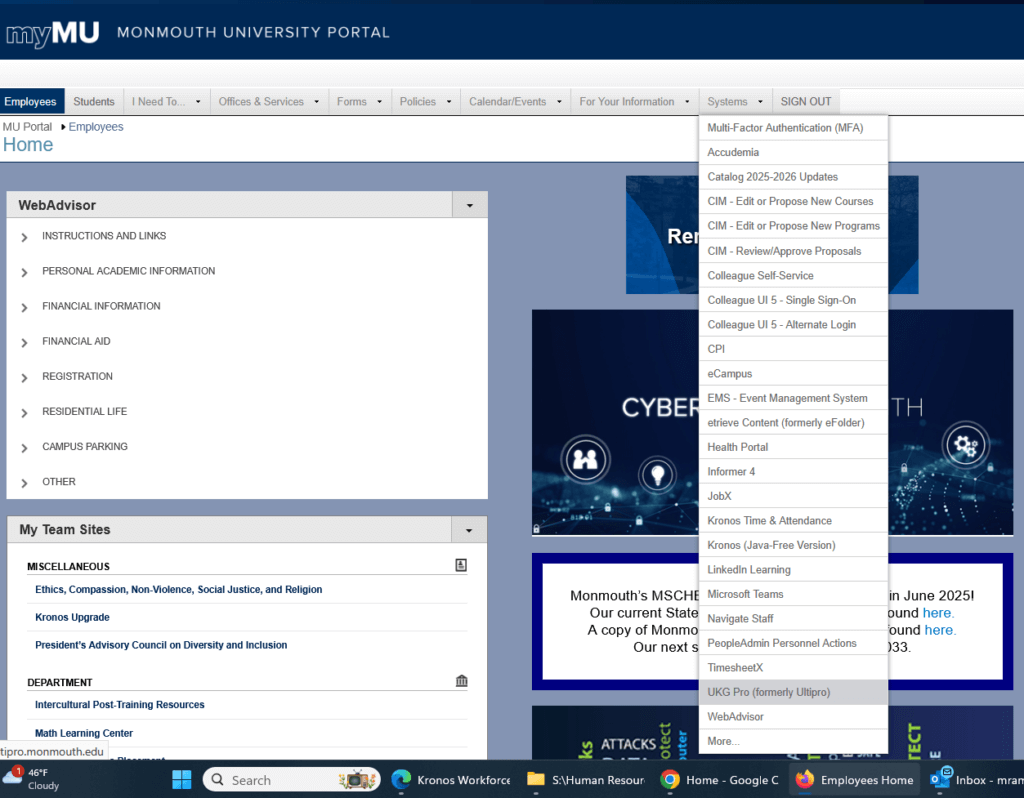
A screenshot of the myMU portal. The user has begun to go through the top menu, going to Systems, and then UKG Pro.

3. Select Workforce Management on the Left Menu, under “Myself”
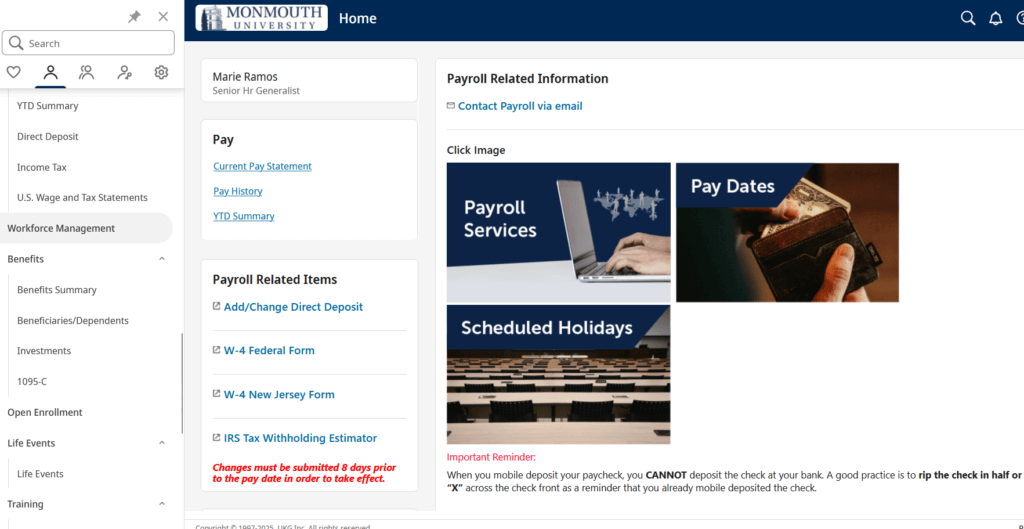
A screenshot of the UKG Pro portal. The user has navigated to the left menu, and selected the Workforce Management link.

4. You Should Now See a Screen Similar to This
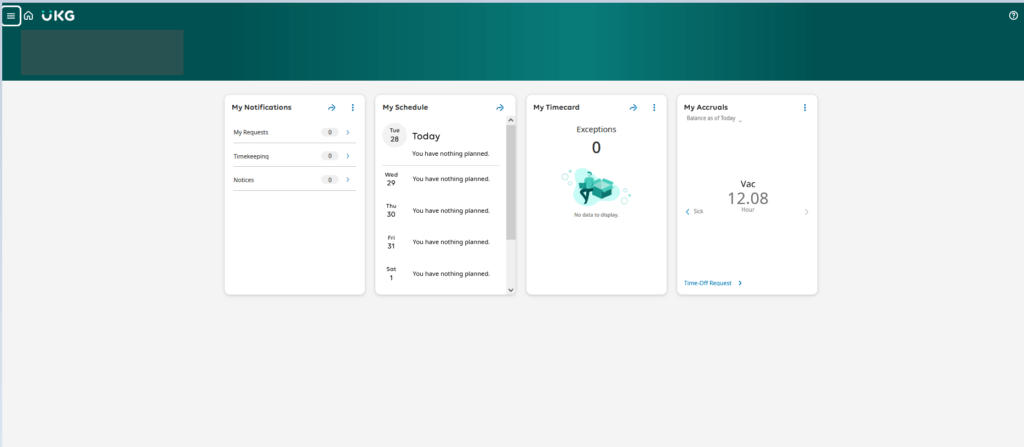
A screenshot of the UKG Pro Workforce Management Page. On the screen are four tiles. The first is My Notifications, displaying sections for requests, timekeeping, and notes. The second is My Schedule, showing the most recent days from now into the future (each day shows "you have nothing planned"). The third is My Timecard--currently there are 0 exceptions, indicating there are no timecard problems. The fourth is titled My Accruals, which shows that the user has accrued 12.08 hours of vacation time. The time-off request option is located in the fourth tile.

Each employee will see a certain amount of tiles that are connected to their role as an employee or supervisor. You may see three, four, or five tiles depending on that role.